目次
- What is MT5/MetaTrader5?
- How to Connect and Log in to Your XM Account on the MT5 App
- Steps to Register Your XM Account in the MT5 App
- [Important] Adding Currency Pairs (Symbols) You Want to Trade
- Causes and Solutions When You Cannot Log In or Connect to the MT5 App
- 1. You are mixing up the MT4 and MT5 apps
- 2. You selected the wrong server name
- 3. Incorrect password entry (Uppercase/Lowercase)
- 4. The account is frozen (archived)
What is MT5/MetaTrader5?
It is the most popular trading tool in offshore Forex.
While the older version, MT4, is still in use, MT5 is currently the mainstream.
Trading with XM is also designed on the premise of using MT5.
MT5 itself works on both PCs and smartphones,
but this article explains how to connect using the smartphone app version.
How to Connect and Log in to Your XM Account on the MT5 App
To connect the account you created on XM to the MT5 app and start trading, you need the following three pieces of information:
- Account ID (MT5 Login ID)
- Password (The one you set when opening the account)
- Server Number (e.g., XMTrading-MT5 3)
You can check this information in the email titled 'Your new trading account details' received when you opened your XM account,
or from the account information on your XM My Page (Members Area).
For security reasons, only the password is not stated in the email,
so please manage it carefully so you don't forget it.
Using a password management app for smartphones like KeePass is recommended.
Steps to Register Your XM Account in the MT5 App
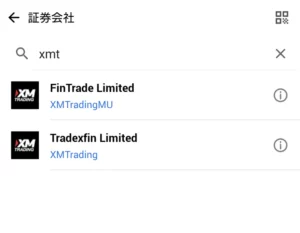
- After launching the MT5 app, first tap 'Settings' (or the menu on the top left for Android) → 'New Account' (or the '+' icon).
- Tap the 'Find Broker' field.
- For XM, type 'xmt' and select 'Tradexfin Limited' when it appears.
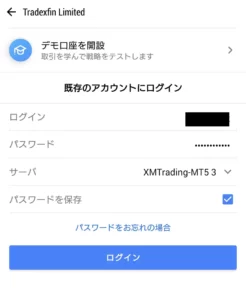
- Enter your XM Account ID in the 'Login' field.
- Enter your password and select the specified server number respectively.
- Tap 'Login' (or 'Sign In').
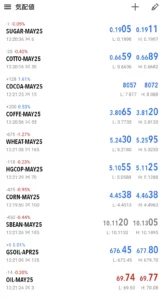
If you log in successfully, the list of Quotes (trading pairs) will be displayed.
[Important] Adding Currency Pairs (Symbols) You Want to Trade
For some reason, immediately after logging into the smartphone version of MT5 with XM,
only niche symbols like Sugar, Cocoa, and Coffee futures are displayed.
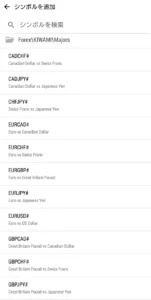
By tapping the '+' (or pencil icon) at the top right, you can add the symbols you want to trade.
For example, if you log in with a KIWAMI Extreme Account, they are categorized as follows:
- ForexKIWAMIExotics: Minor currencies like Rand or Turkish Lira
- ForexKIWAMIMajors: Star major pairs like USD/JPY (USDJPY) and EUR/USD (EURUSD)
- ForexKIWAMIMinors: Currency pairs involving AUD or NZD
- CryptocurrenciesKIWAMI: Cryptocurrencies/crypto assets like Bitcoin (BTCUSD)
- DerivativesMetals KIWAMI: Precious metal CFDs like Gold (GOLD) or Silver
You can also search by typing text directly into the 'Find Symbols' field.
As a point of caution, the symbol name for the popular product Gold is listed as 'GOLD' instead of the typical 'XAUUSD' on XM.
If it doesn't show up in your search, try looking for 'GOLD'.
Causes and Solutions When You Cannot Log In or Connect to the MT5 App
If you follow the steps but still cannot log in, seeing messages like 'Invalid Account' or 'Authorization Failed', the following causes are possible:
1. You are mixing up the MT4 and MT5 apps
For instance, did you create an 'MT5 Account' on XM, but download the 'MT4 app' on your smartphone and try to log in?
The reverse can also happen.
Since MT4 and MT5 are not compatible,
you must use the app version that matches the account type you opened.
Since MT5 has more features, there is not much need to deliberately choose MT4 these days.
2. You selected the wrong server name
Because XM has many users, there are dozens of different server numbers.
If your account is assigned to 'XMTrading-MT5 2', you will not be able to connect if you select the 'XMTrading-MT5 3' server to log in.
Please check your registration completion email or XM My Page again,
and select the server that matches perfectly, down to the number.
3. Incorrect password entry (Uppercase/Lowercase)
The MT5 login password is usually different from the password used to log in to your XM My Page.
Also, 'uppercase and lowercase' letters are strictly distinguished,
so make sure your smartphone's keyboard didn't automatically capitalize the first letter.
If you are going to create multiple accounts, it is highly recommended to use a password management tool like KeePass.
4. The account is frozen (archived)
An XM account that has not had any trading or deposit/withdrawal activity for over 90 days becomes a 'Dormant Account'.
Furthermore, if it is left with a zero balance, it becomes a 'Frozen Account' and you can no longer log in from MT5.
Since a frozen account can never be restored,
your only option is to open a new additional account from your XM My Page.